
TikaMobile / SaaS and Software
Inside the insights module
Product walkthrough
Inside the edit
A task-led walkthrough of the insights module, using screen movement and narration to guide the viewer through the workflow.
Read the client story ↗Read automatic transcript
Automatically transcribed from the showcased film. Wording may contain errors. This is the client’s narration, not advice from FDM.
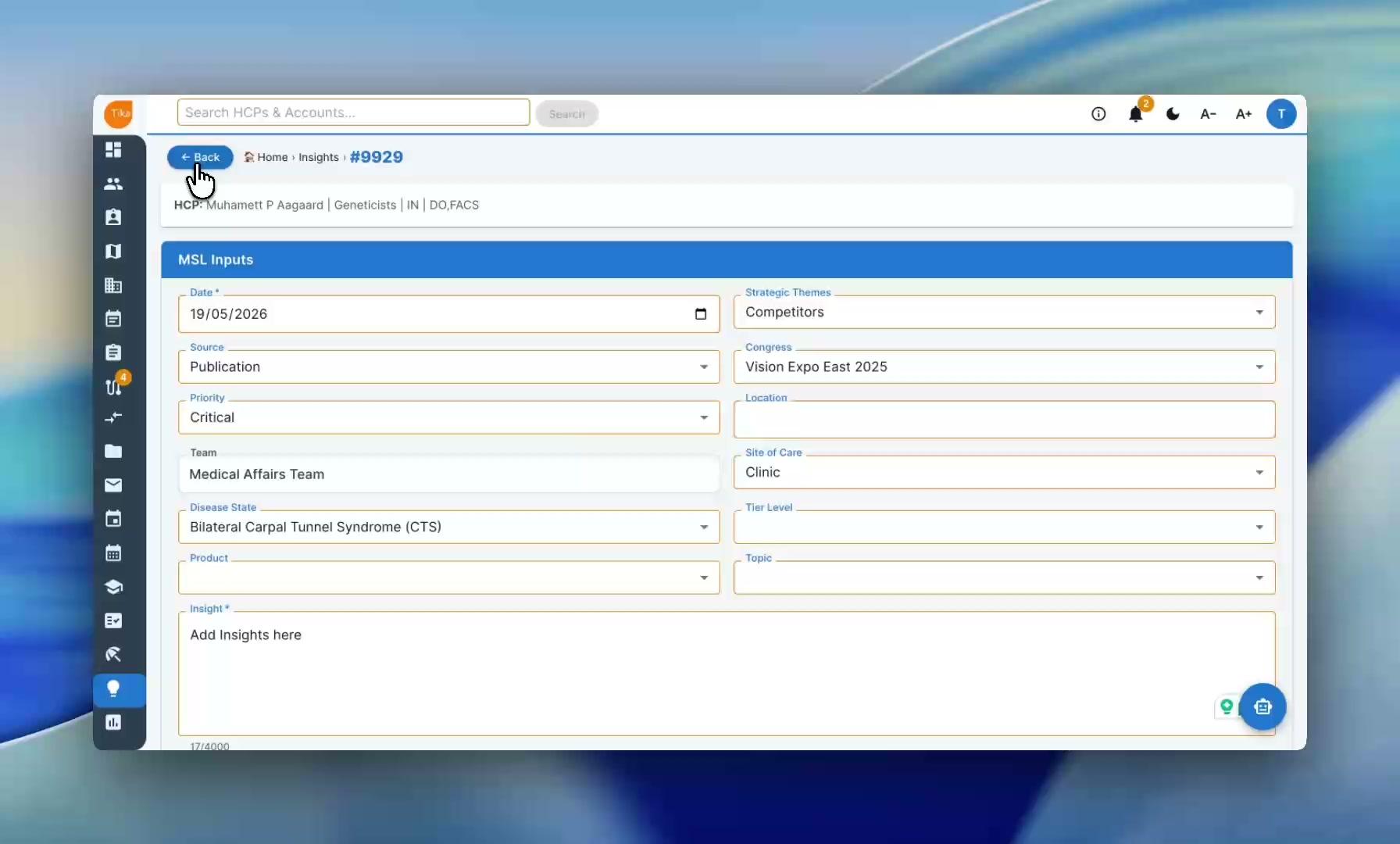
Welcome to TikaMobile. Let's start with logging in Insights module. From the HCP profile, click "Add Insight" to open the entry form. At the top, select the HCP you met with. In the MSL Inputs panel below, fill in everything about the interaction. The date, the source, priority level, therapeutic area, etc. Along with your actual insight in the free text field. You have up to 4,000 characters, so capture exactly what was said. And if you're on the go, use the dictation feature to capture the details hands-free. Scroll down and you'll see a few more powerful fields. Tika MSL generates sentiment, hashtags, and AI-recommended next steps directly on the record, giving you a smart starting point for follow-up. Your manager can leave coaching notes in the manager comment section, keeping feedback tied directly to the insight. And in the Post Insight action panel, set your follow-up date, choose a topic, and check the action office complete once it's done. Now let's look at the Insights dashboard. This is where you get a full picture of all captured insights across the team, filter by therapeutic area, and browse by month. The word cloud shows your most frequently discussed products at a glance, and the contributor charts show how each team member is adding to the knowledge base. Now let's navigate to Analyze Insights. Tika MSL's built-in AI chatbot for your field data. Select your therapeutic area, then simply ask questions in plain language. In this example we type, "Show me a stacked bar chart for KOL sentiment around Luparka in the last 12 months." The AI instantly returns a visual chart, along with a detailed written analysis, breaking down sentiment month by month, spotting peaks and dips, and telling you what those patterns mean for your product. And if you want to dig into a specific data point, just click any insight number that appears in the AI response. The full insight record opens in a pop-up, so you always have the context behind every number. You can download the report as a PDF. Click Insights Summary, set your date range, and the AI reads through all your team's insights and extracts the most important key points from HCP conversations, ideal for QBRs or leadership briefings. Click Key Themes, and the AI organizes those same insights into strategic themes, like clinical data and research collaboration, or treatment side-effect management, each backed by the specific subpoints your HCPs actually raised in the field. When you're ready to share findings beyond the platform, go to the Report Wizard. Select your therapeutic area, choose a report type, set your date range, and hit Generate. Your report is produced in both PowerPoint and Word format, and saved automatically in your report history. Under My Reports, you can build and manage your own custom report templates, defining the name, description, and the specific questions each report should answer. And if you're not sure what report to run, use AI-powered report ideas. The AI analyzes your existing insights and suggests report structures tailored to what your team is actually capturing in the field. With Tika MSL's Insights module, every field conversation becomes a piece of intelligence your entire medical affairs team can act on.
Download caption file